RE:USE for Premiere Pro
Build it once.
Use it in every project.
Save any part of your timeline, with its effects and keyframes, and drop it into any project in one click.
$29One payment, no subscription.
Buy RE:USE Try free for 7 days · no cardNot for you? Full refund within 14 days.
Key and download by email · 2 computers
Premiere Pro 25.6+Windows and macOSPay onceYour media stays where it is
You already made it once.
The intro, the lower third, that meme pop-up with the perfect bounce. It is sitting in a project from three months ago.

Without RE:USE
- 01Remember which project it was in.
- 02Open that project and wait for it to load.
- 03Find the sequence and copy the clips.
- 04Paste it back and clean up the duplicate clips it brought along.
2 projects open · 4 steps
With RE:USE
- 01Click it in the panel.
It lands at the playhead with its effects, keyframes and track layout, in this project or any other.
1 panel · 1 click
How it works
-
1Pick the preview
Set In and Out around the part you want as the preview. It loops on the card.
-
2Select the clips
Select every clip that belongs together, on any track. Effects and keyframes come along.
-
3Save it
Click an empty + and give it a name. RE:USE saves it with a looping preview.
-
4Drop it anywhere
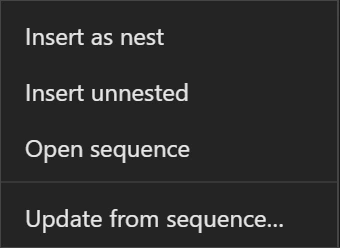
Click the element to add it at the playhead, in this project or any other. Right-click to insert it as a nest.
What goes in it
Anything you build on a timeline and want again. These are real elements from my own library, played the way the panel previews them.
Built for a real library
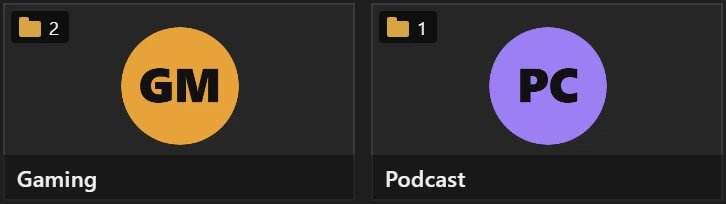
Folders
One folder per client or series, each with its own logo.

Project or Global
Keep an element in this project only, or in every project.
Edit it any time
Open the sequence, change it, update. Every project gets the new version.
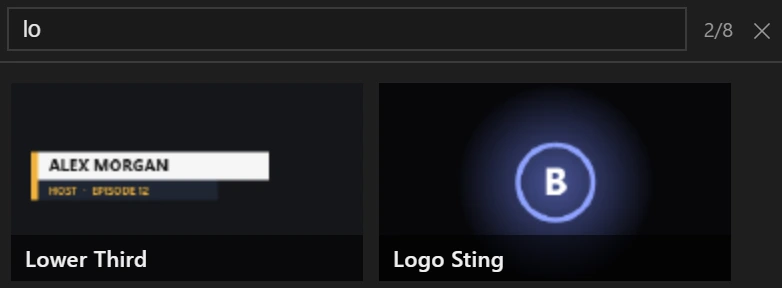
Search
Type a few letters to find any element, in folders too.
Insert as one nest, or as the original clips on their own tracks.
A deleted element sequence comes back from its backup.
Elements point to your files where they already are.
The library is plain project files in your Documents folder.
One price, yours to keep
- Unlimited elements, folders and projects
- One key on 2 computers
- Windows and macOS
- Free updates
- 14 day refund, no questions
At $20 an hour, RE:USE pays for itself after 87 minutes saved.
$29One payment, no subscription.
Buy RE:USE Try free for 7 days · no cardNot for you? Full refund within 14 days.
The trial is the full version. Everything you save stays when you buy.
Install
- Buy, or start the free trial. The key and download come by email.
- Drag the .ccx file into the free aescripts ZXP Installer.
- Restart Premiere and open Window › UXP Plugins › RE:USE.
Frequently asked questions
Which Premiere Pro versions does it work with?
Premiere Pro 25.6 or newer, on Windows and macOS.
Is there a free trial?
Yes. The trial is the full version for 7 days. Everything you save during the trial stays when you buy.
How many computers can I use it on?
One key works on 2 computers. To move it, release a computer in Settings and activate the key on the new one.
Where are my elements saved?
In the RE-USE Library folder in your Documents. Updating or reinstalling RE:USE never touches it. GLOBAL elements also get a plain project file each in its Assets folder, so you can open them in Premiere even without the extension. Every time you save, RE:USE also keeps a copy of the project in a backups folder, and brings back an element whose sequence was deleted.
Does it copy my media?
No. An element uses your media where it already is, like any sequence does. If you move the media, relink it in Premiere as usual.
What happens the first time I use an element in another project?
RE:USE imports its sequence into that project once, into a bin called RE:USE. That first use takes a little longer; after that it is instant.
Nest or separate clips?
Your choice. Settings decides what a click does: insert as a nest, insert the clips unnested, or open the sequence. Right-click an element to pick each time.
What happens to my elements when the trial or licence ends?
They stay. Everything lives in the RE-USE Library folder in your Documents, and RE:USE never deletes it. The panel just locks until you enter a key, then it all comes back exactly as you left it.
Adobe says to launch Creative Cloud before installing?
That message shows when you double click the .ccx while the Creative Cloud app is closed or signed out. Drag the file into the free aescripts ZXP Installer instead, or open Creative Cloud, sign in, and double click the file again. Then restart Premiere.
Can I get a refund?
Yes, within 14 days of purchase. Write to support@baneetools.com.